MCP connector
Your assistant, working from your library and answerable to it.
Ask a general assistant about your field and it answers from memory, sometimes with a plausible paper and a plausible DOI that do not exist. Add Folio to Claude, ChatGPT or any MCP client, sign in once, and it searches what you actually saved, cites what Folio formatted, verifies what it claims, and never writes into your draft.
Cost: nothing extra; metered under the same allowances as the matching feature inside Folio.Every plan, compared
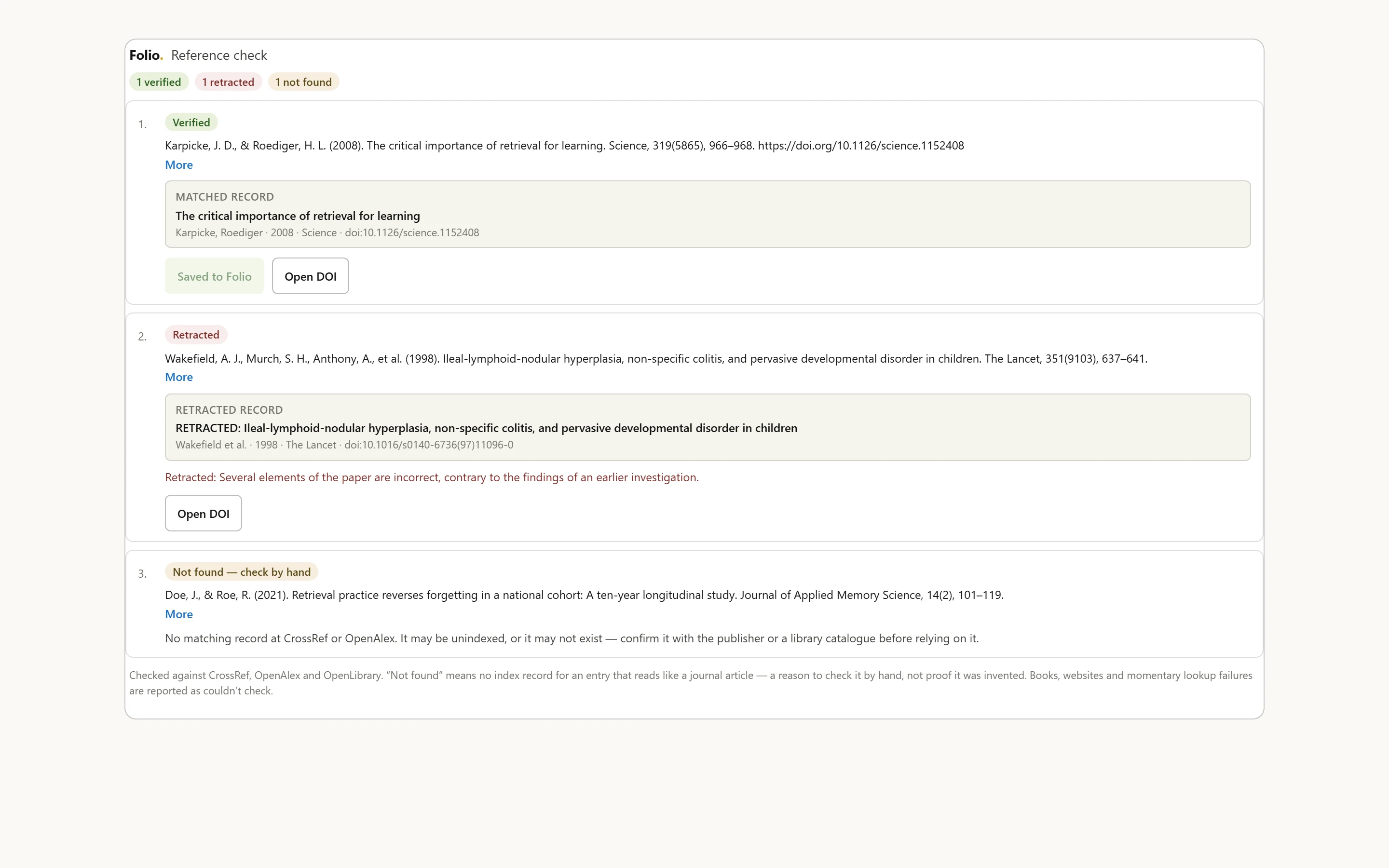
Twenty-five tools read a library; ten write to it with permission; none deletes, and none writes into a draft.
Thirty-five tools, one account, and every write needs permission.
Thirty-five tools connect over OAuth to one account: search by meaning, citations in six formats plus BibTeX and RIS, reference and quotation verification, the uncited claims in a draft, and the Radar feed. Saving or organizing a source needs the separate save-and-organize permission, which can be unticked on the consent page for a read-only connection, and nothing ever writes into the draft itself. Every result carries its retraction status through to the assistant, so a retracted paper is flagged in the answer instead of repeated back. Read the setup guide for every step, or paste https://www.usefolio.co/api/mcp into the client you already use. The library stays the source of truth; the assistant just gets to check its work against it.
What does my library say about retrieval practice and long-term retention?
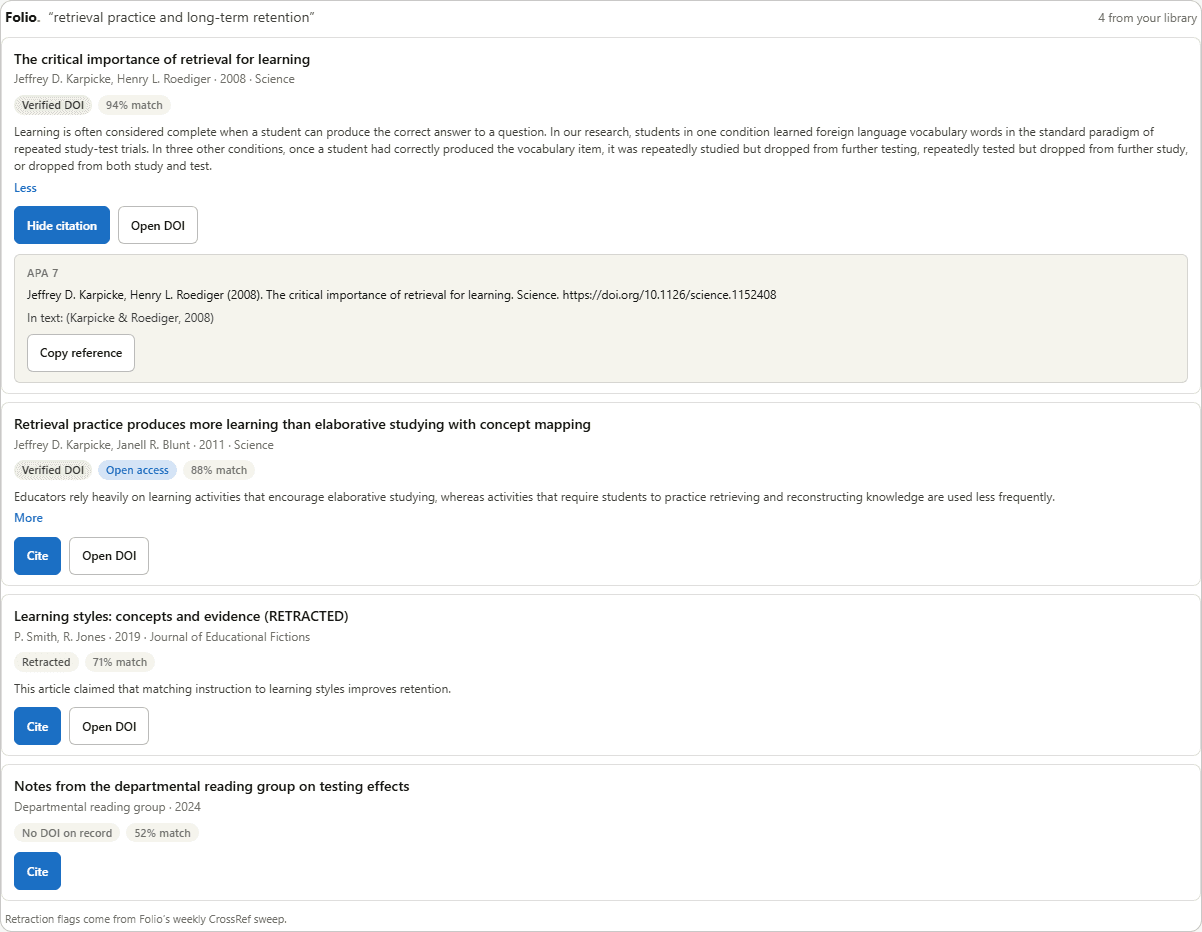
A real search through the connector. The card is what Claude renders; the citation is what get_citation returned.
The questions that decide it.
Short answers, in the product’s own terms.
In Claude: Settings, Connectors, Add custom connector; paste https://www.usefolio.co/api/mcp, click Connect and sign in to Folio when asked. In ChatGPT: Settings, Apps and Connectors, Advanced, Developer mode, Create; paste the same address, and sign in. Claude Code takes one terminal command, and Cursor and VS Code have one-click buttons in Account settings, AI assistants. The setup guide has every step.
Read: search the library by meaning; get citations, bibliographies and full source details; read notes, highlights and the passages that support a claim; verify quotations; read and search drafts and find their uncited claims; read a draft’s authorship record and Reviewer Report; follow Radar and Discovery Agent finds; search the public indexes; verify references one at a time or as a whole list; and read Surveyor results as per-question summaries. Write, only with permission: save sources, tag them, file them in collections, set reading status, add a note marked as its own, and tidy agent finds. It can never delete anything.
No, by design. An assistant connected to Folio helps you write and never writes for you, so there is no tool that puts text into a document. It can read a draft you allow it to see, find and verify sources for it, and save them to your library. The writing stays yours.
Only with the save-and-organize permission, and only in the ways listed on the consent page: saving a source, tagging it, filing it in a collection, setting its reading status, adding a note that is labeled as the assistant’s, and setting up a Radar tracker or a Discovery Agent when you ask for one. Nothing it does deletes a source, a tracker or an agent, and your own notes are never rewritten.
The consent page lists exactly what the app is asking for. Searching and citing your library is always included; saving and organizing sources, reading your drafts, and reading survey results are separate permissions you can uncheck. Every connected app, and what each may do, is listed in Account settings, AI assistants, with a one-click disconnect.
No. The survey tools return aggregates over complete responses and the themes already coded in Surveyor: means and spreads for scaled items, option counts for choice items, theme names for open questions. Participant identities and raw open-text answers never leave Surveyor through the connector.
No. A connection resolves to exactly one account, and a source id belonging to another researcher is indistinguishable from one that does not exist. There is no public or cross-library search; that is deliberate, not an oversight.
Retraction status travels with every result, verify_reference checks CrossRef’s retraction record for any citation you ask about, and check_references does the same for a whole list, so the assistant is told when a source has been retracted rather than quietly repeating it.
Not yet. It works today as a custom connector in both, over the same OAuth flow the directories require; directory listings are the next step. Any MCP client that follows the current specification connects the same way.
Nothing extra. Searches, claim checks and the Radar feed are metered under the same allowances as the matching feature inside Folio, so a free account gets what a free account gets. Disconnect an app in Account settings, AI assistants, and it stops working immediately; the others keep working.
Every image on this page is a capture of the product running on fictional data. How data is protected
Your sources, in the assistant you already use.
Free, opt-in, and one sign-in away. Connect it in a minute; disconnect it in a click.
Free to start · No credit card · Export everything · No ads